Building an iOS-style Shopping App with minimalistic design using Flutter
Building an iOS-style Shopping App with minimalistic design using Flutter
Introduction
The Material Design language was created for any platform, not just Android. When you write a Material app in Flutter, it has the Material look and feels on all devices, even iOS. If you want your app to look like a standard iOS-styled app, then you would use the Cupertino library.
You can technically run a Cupertino app on either Android or iOS, but (due to licensing issues) Cupertino won’t have the correct fonts on Android. For this reason, use an iOS-specific device when writing a Cupertino app.
What you’ll build?
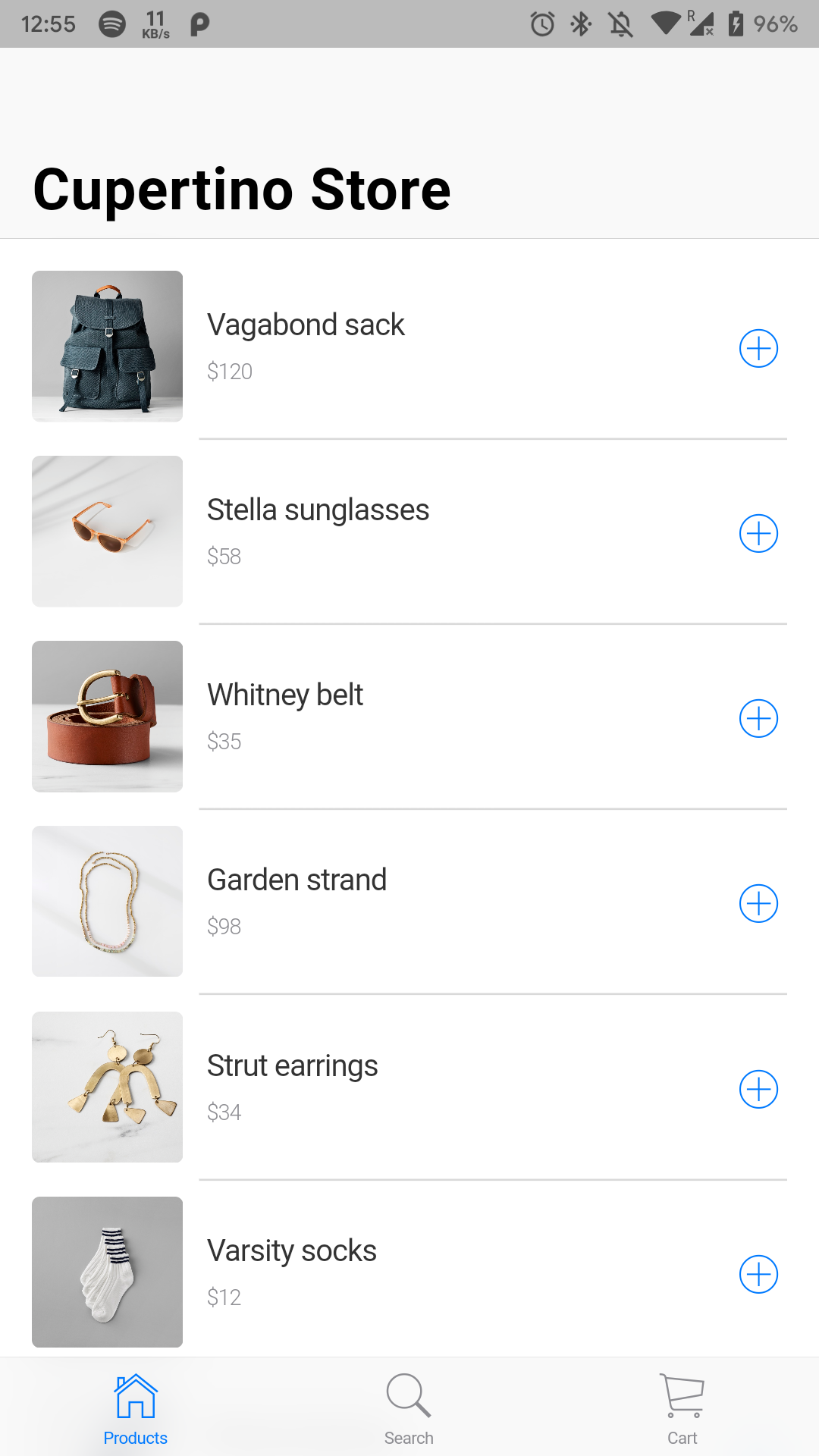
In this tutorial, you’ll build a shopping app with an iOS materialistic design using the Flutter SDK. Your app will have:
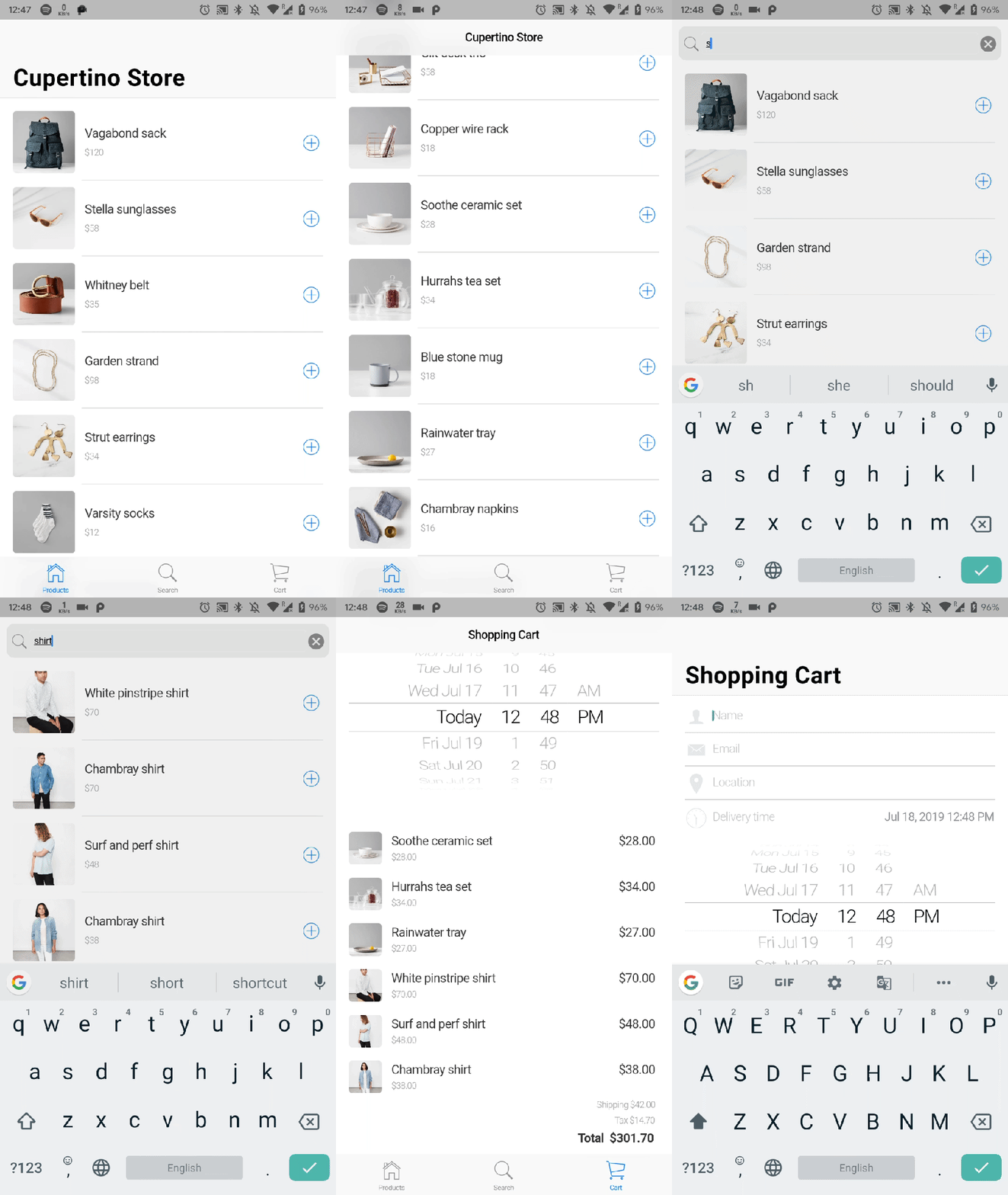
- Three tabs for Products , Search and Cart.
- Holistic flow for buying any product.
- Use the
**provider**** ** package to manage state between screens.
This tutorial focuses on building important components and Cupertino layout. Non-relevant concepts and code blocks are glossed over and are provided for you to simply copy and paste.
Github Repository | @ShivamGoyal1899
ShivamGoyal1899/CupertinoShoppingApp
Building an iOS-style Shopping App with minimalistic design - ShivamGoyal1899/CupertinoShoppingApp github.com
Package Used | provider
provider | Flutter Package
_A dependency injection system built with widgets for widgets. provider is mostly syntax sugar for InheritedWidget, to …_pub.dev
Setting up Flutter on your machine
The detailed steps to install Flutter on your personal computer & getting started with Flutter is available at the following blog post
**How to install Flutter and create a simple Flutter app **
Learn what is Flutter and how to set it up on Windows and Mac systems and get started with Flutter apps medium.com
Coding the application
Create the initial Cupertino app
- Create a simple templated Flutter app, using the instructions in the above blog. Name the project cupertino_store. You’ll be modifying this starter app to create the finished app.
- Replace the contents of
**main.dart**** ** with the following code.
- Add a file to the
**lib**** ** directory called**styles.dart**. The**Styles**** ** class defines the text and color styling to customize the app.
- Add the following
**CupertinoStoreApp**** ** class to**lib/app.dart**.
- Add the following
**CupertinoStoreHomePage**** ** class to**lib/app.dart**to create the layout for the homepage.
- At the top of the project, edit the
**pubspec.yaml**file. Add the libraries that you will need, and a list of the image assets.
Create the structure for a 3-tab app

- The final app features 3 tabs:
Product list | Product search | Shopping cart - Replace the
**CupertinoStoreHomePage**** ** class with the following, which sets up a 3-tab scaffold:
- Create a
**lib/product_list_tab.dart**** ** file for the first tab that compiles cleanly, but only displays a white screen. Use the following content:
- Create a
**lib/search_tab.dart**file that compiles cleanly, but only displays a white screen. Use the following content:
- Create a
**lib/shopping_cart_tab.dart**file that compiles cleanly, but only displays a white screen. Use the following content:
- Update the import statements in
**lib/app.dart**to pull in the new tab widgets:
Add state management
- Create a
**model**directory under**lib**. Add a**lib/model/product.dart**file that defines the product data coming from the data source:
- Create a
**lib/model/products_repository.dart**file. This file contains all products for sale. Each product belongs to a category.
- Here is the list of method signatures provided by this class.
- In the
**main()**method, initialize the model. Add the lines marked with NEW.
List products for sale
- Create the
lib/product_row_item.dart file, with the following content:
In
**lib/product_list_tab.dart**, import the**product_row_item.dart**file.import ‘package:flutter/cupertino.dart’; import ‘package:provider/provider.dart’;
import ‘model/app_state_model.dart’; import ‘product_row_item.dart’; // NEW
In the
**build()**method for**ProductRowTab**, get the product list and the number of products. Add the new lines indicated below:
- Also in the
**build()**method, add a new sliver to the sliver widgets list to hold the product list. Add the new lines indicated below:
Add product search
- Update the imports in
lib/search_tab.dart. Add imports for the classes that the search tab will use:
- Update the
build()method in_SearchTabState. Initialize the model and replace theCustomScrollViewwith individual components for searching and listing.
- Add supporting variables, functions, and methods to the
_SearchTabStateclass. These includeinitState(),dispose(),_onTextChanged(), and_buildSearchBox(), as shown below:
- Create a new file,
lib/search_bar.dart. TheSearchBarclass handles the actual search in the product list. Seed the file with the following content:
Add customer info
- Update the
**lib/shopping_cart_tab.dart**file. Add private methods for building the name, email, and location fields. Then add a**_buildSliverChildBuildDelegate()**method that build out parts of the user interface.
- Update the
**build()**method in the**_SearchTabState**** ** class. Add a**SliverSafeArea**** ** that calls the**_buildSliverChildBuildingDelegate**method:
Add date picker
- Add imports and a
**const**to**lib/shopping_cart_tab.dart**. Add the new lines, as shown:
- Add a
**_buildDateAndTimePicker()**function to the**_ShoppingCartTab**widget. Add the function, as follows:
- Add a call to build the date and time UI, to the
**_buildSliverChildBuilderDelegate**** ** function. Add the new code, as shown:
Add selected items for purchase
Import the product package in
**shopping_cart_tab.dart**.import ‘model/product.dart’;
Add a currency format to the
**_ShoppingCartTabState**** ** class.final _currencyFormat = NumberFormat.currency(symbol: ‘$’);
Add a product index to the
**_buildSliverChildBuilderDelegate**** ** function.SliverChildBuilderDelegate _buildSliverChildBuilderDelegate( AppStateModel model) { return SliverChildBuilderDelegate( (context, index) { final productIndex = index - 4; // NEW switch (index) {] // …
In the same function, display the items to purchase. Add the code to the
**default:**section of the switch statement, as follows:
Building & running the application
- Connect your Emulator or physical Android device to test the application.
- Click on Build & Run.
- And Boooom 🔥, your app is ready.
The final build would look like the below illustration.
Flutter Full App | Enappd
Flutter Full App – Complete starter for Flutter – Enappd | Ionic, React Native, Firebase themes…
_Get the latest and amazing Flutter Full App. It is loaded with a large number of options, layouts, and functionalities …_store.enappd.com
Enappd Store | Premium App Starters
Enappd | Ionic, React Native, Firebase themes, templates and starters
_Get the full source code for Ionic, React Native, Firebase mobile app templates and starters. Use free templates and …_store.enappd.com