Make awesome Theme Switcher in Ionic 5

Table of Contents
Make awesome Theme Switcher in Ionic 5
You must have seen several apps with a magic button that helps you change your application look completely. Yes, I am talking about the theme changing button, specifically in Ionic Application. Colors are always a personal preference and sometimes users want to take control of this single most important UI change factor.

You want to change theme with all these colors, don’t you ! 😁
Post Structure
Quick glimpse of what we’re discussing
- Advantage of theming in apps
- Why Ionic apps
- Theme switcher implementation in Ionic
- Live demonstration
- Dark and Light mode
Advantage of theming in Apps
Who doesn’t like colors ! There are various advantages of using themes in applications, some are mentioned here
- It saves energy, mainly if the device uses an OLED or AMOLED screen. Darker shade colors save more energy.
- Gives a new **Essence **to the application, Which helps us to attract different users. As we know various people and cultures have different color preferences, colors can definitely be signs of someone’s identity. This color might bring them back to the app – and they may use it for a longer time.
- **DARK **and **LIGHT **Themes (Dark Mode and Light Mode) – With the majority of the screen dark, the screen glare is reduced, thereby minimizing flickering and blue light. To implement only dark mode we have a separate blog – you can read it here.
Ionic has made it really simple to implement dark mode now, read in following sections
Why Ionic
First of all because I am an Ionic fan. But that’s not the only reason. Ionic apps are amazing and easy to develop. Plus they offer single source code for both Android and iOS, without much difference in performance. I have developed Android and iOS native apps in Java and Swift respectively, and trust me, Ionic is wayyyyyy easier.
If you are a beginner, you can read about how to get started on Ionic in our other blogs – Getting started with Ionic 5
Theme Switcher Implementation
Create basic Ionic app
We will be using a dropdown to switch between different themes in our app. First, create your Ionic app using the below command or you can also visit our Beginners guide for Ionic application. I would recommend to have latest Ionic (5.x), Angular (10+) and node (14.x) installed, but it’s not mandatory.
$ ionic start themeApp blank
The command will ask few questions regarding ‘framework to use’ – select Angular, and ‘whether to connect with Capacitor’ – You can select either Y/N.
Create test UI
This will create a new Ionic 5 application in your working directory with **themeApp **name. The new app has a default home page folder and all required app level files.
- We will add ion-select in
home.page.htmlwhich will help in switching between themes. - We will also add few elements which will change colors as per the theming, so we can see what we’re doing. Your
home.page.tswill look like this. Notice theion-headerhasprimarycolor assigned. We will change theprimarycolor definition in our theme switcher.
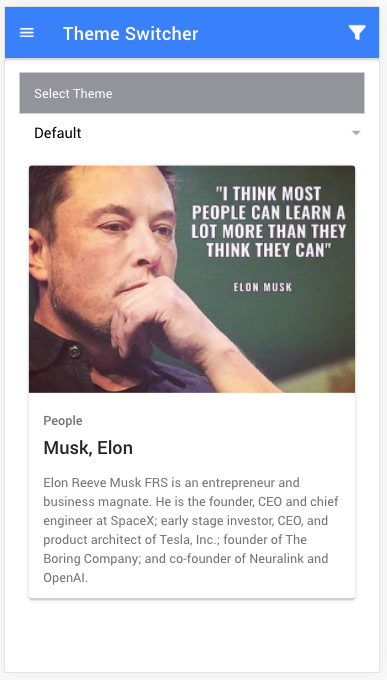
This is how it will look by Ionic’s default (primary is blue in Ionic default)
Theme Switcher Styling
First we’ll define the theme names in home.page.ts** . ****theme color **array will be –
public themeColor = [


 { name: 'Default', class: 'default' },


 { name: 'Dark', class: 'dark-theme' },


 { name: 'Purple', class: 'purple' },


 { name: 'Medium', class: 'mediumTheme' }


];
Name is what you’ll see in the dropdown options. You can modify **labels **or add more options to the array.
The class will be applied on body tag of HTML directly when we change the theme. So keep in mind the CSS class name (which we add later) should be the same as here. Below image shows how the switcher dropdown looks likeThis will result in changed styling, pretty basic right!
Now, we have to define CSS classes in **variables.css**. The **variable.css** file can be found under theme/variable.css. We will define the same classes we have created above in the themeColor array. Remember to put these classes in :root (You can choose to apply the styling only in Dark Mode, or only in iOS etc.)
You can modify the color range but keep in mind the above classes name should be the same as above defined in themeColor.
Changing the Theme
Now comes the part where we need some Javascript code to execute the whole theme changing logic. Now we will define **_activeTheme _**function in a service file, here we have to generate a theme service file using the below command –
$ ionic generate service theme
This command will add a theme.service.ts file in the project app structure.
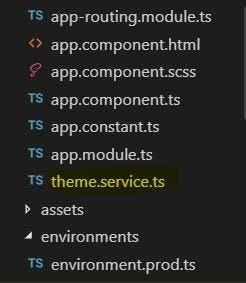
Now we will define the **_activeTheme _**function in this service file.
**_RendererFactory2 _**Class will help us to edit our DOM nodes easily, This class comes under @angular/core.
this.renderer.removeClass(this.document.body, this.currentTheme);
This line will remove the current class from the body of the application, The complete application is enclosed under **< body></body>** tags. So changing the class of document.body will apply that change to the complete application.
this.currentTheme = item;


this.renderer.addClass(this.document.body, item);
First, we will save the currently selected class in **_currentTheme_**** _ _** variable and then add the selected class in **this.document.body** that will be applied on the complete application.
Now, create a **_dynamicTheme_**** _ _** function in home.page.ts – which will be called once we select any theme option from dropdown. This function is using our ThemeService’s activeTheme function – so inject the dependencies properly in the constructor. Here’s how the home.page.ts will be
Notice, now we’re replacing the Ionic’s default with our
Defaulttheme as thehomepage loads. So theprimarycolor should change as per thedefaulttheme which we defined, which is the color red.
Test in web/development mode
The final step we have to compile our code see the magic.
$ ionic serve
Test on device
Testing on device will give the exact same results. To build for android, you can run the following commands
$ ionic cordova platform add android
$ ionic cordova build android
$ ionic cordova run android //Keep the device connected


// Or you can install the APK built in step 2 using
$ adb install <<APK path>>
Here’s how the theme switching will feel like (both dark and light mode)
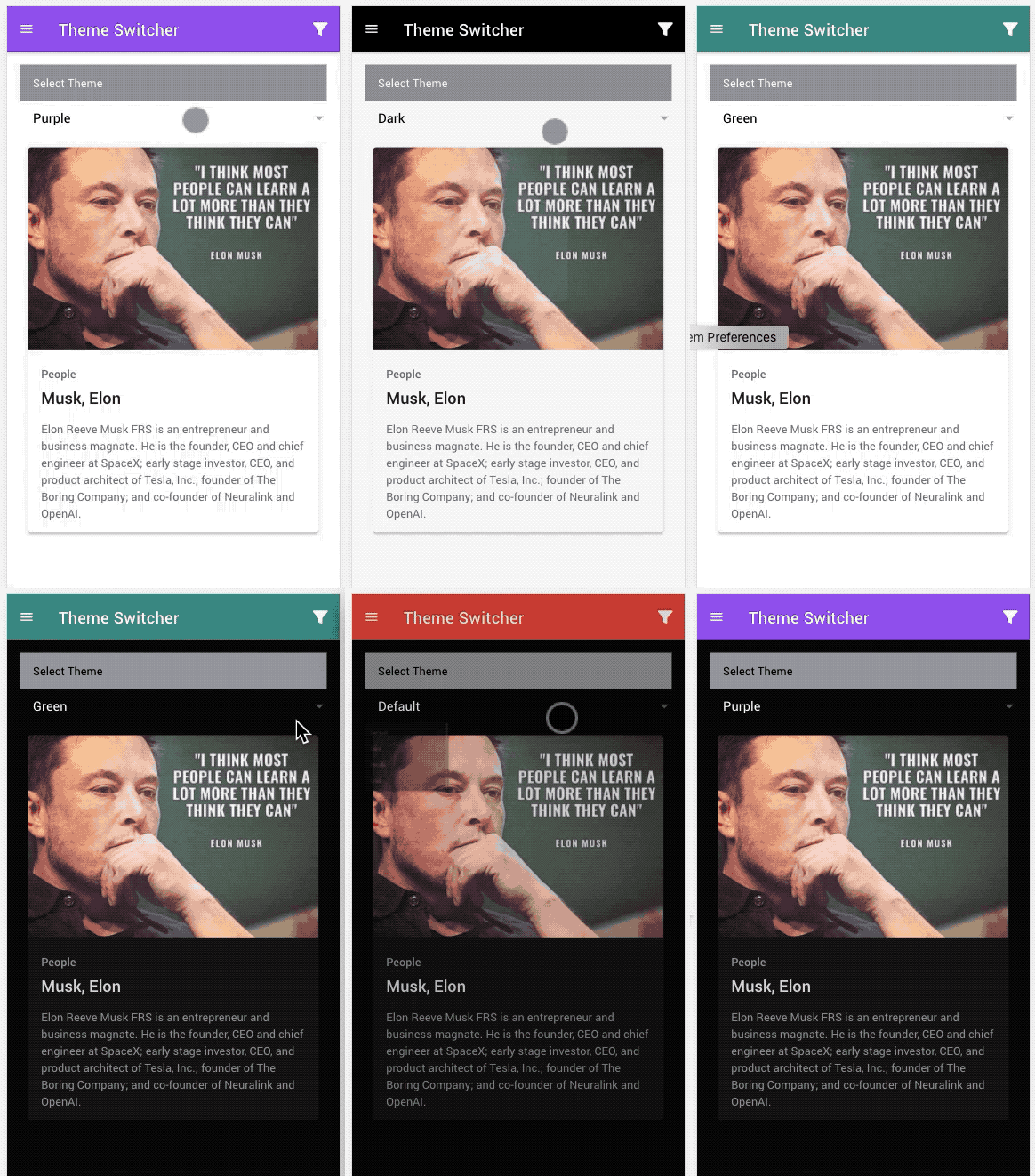
Theme switching in Ionic apps – Demonstration in both Light and Dark mode
Demonstration on live app
If you want to explore a live demonstration of theme change, you can visit HERE _ _ on our Grocery Application. We have some other sample apps there as well.

Theme switcher in Ionic Grocery Platform by Enappd

Dark and purple Theme in Ionic Grocery Platform by Enappd
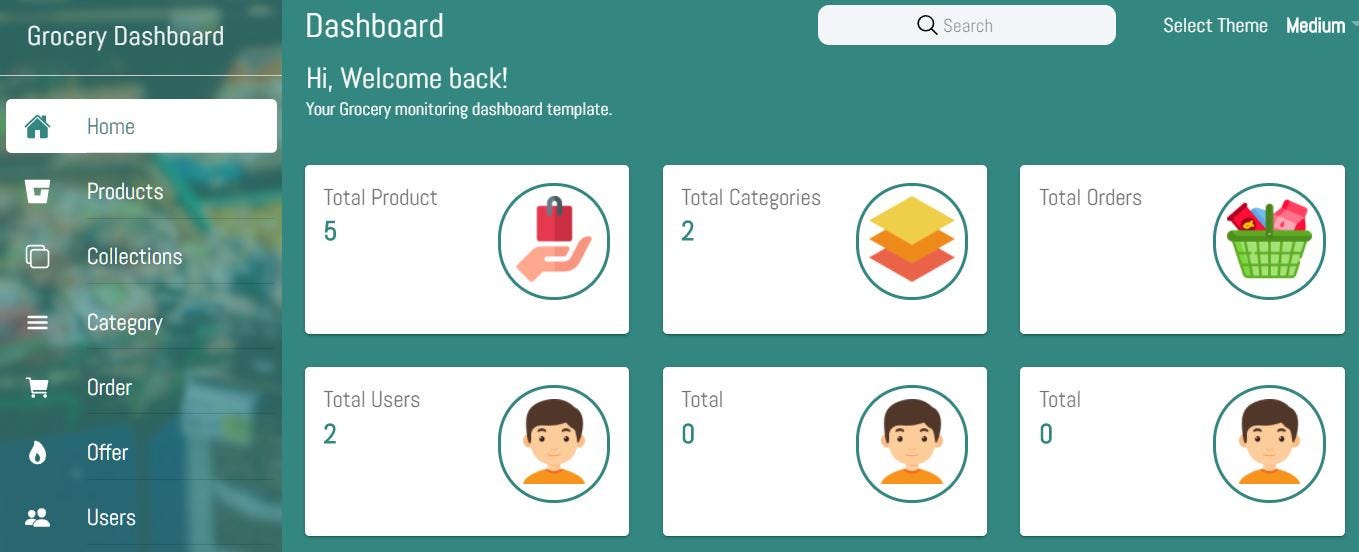
Medium Theme in Ionic Grocery Platform by Enappd
Dark and Light Mode
In earlier versions of Ionic, you had to manually do Dark theming/styling in Ionic, but now it comes as a default styling written in variables.css . It changes the theme based on your device’s Dark/Light theme setting. You can of course execute the same on a button click, or based on time of the day etc.
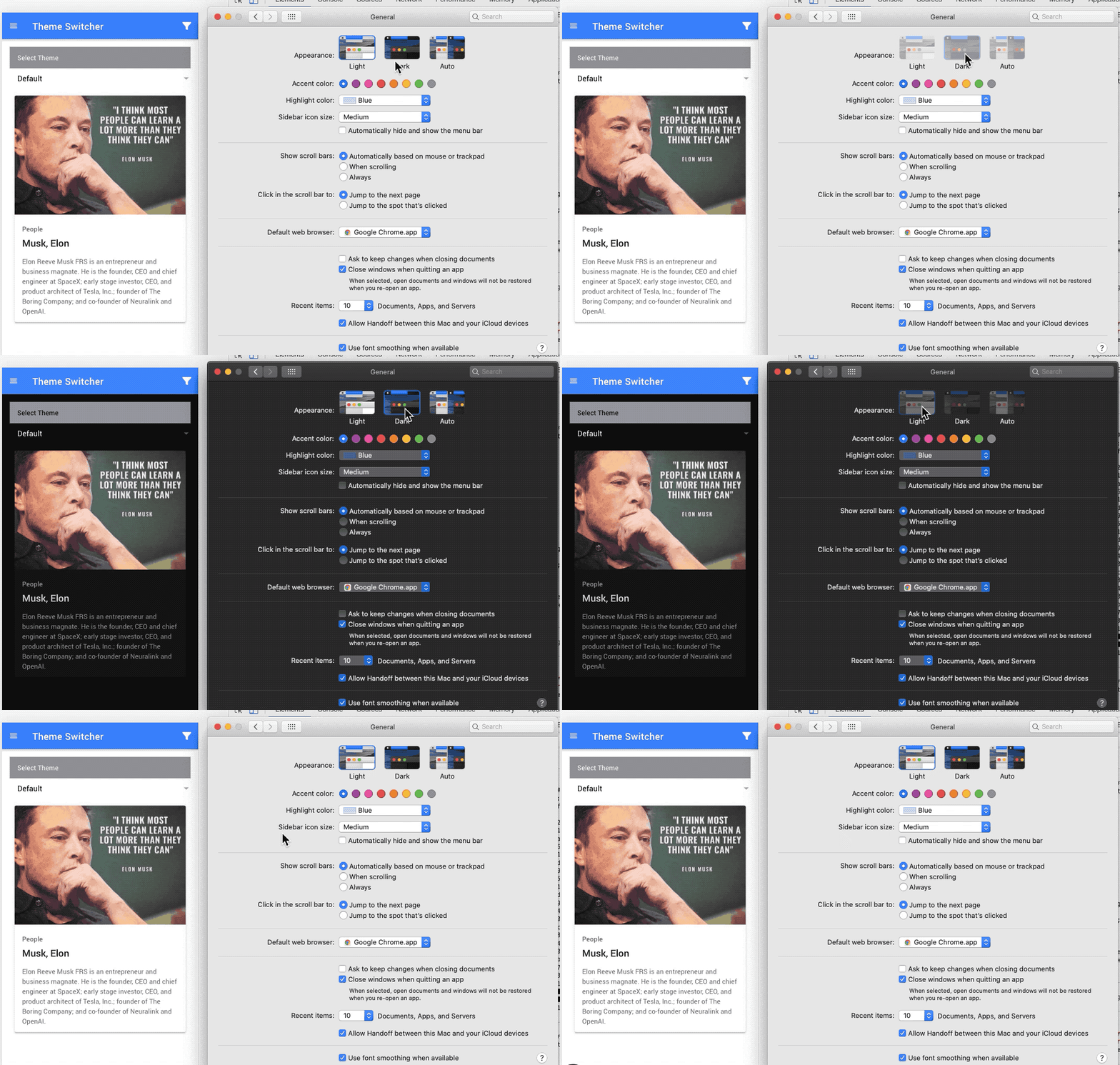
Dark and Light theme switching in Ionic – Ionic now gives these theme options by default
Conclusion
Congrats, you have now learned about Theme Switching in Ionic 5 apps and now you are all set to integrate it with your Application. You can make cool features using this theme switching, some of these ideas off the top of my head are
- Change light to dark based on time of the day
- Allow user to set whole app’s theme right at login, or from settings
- If you have subscription based app, change colors based on if the subscription is active / about to expire / expired
Cheers !